
Logs 3 min read
The Admin Portal provides two types of logs: Audit Logs that track all portal activity, and API Logs that trace every request processed by the API Hub.
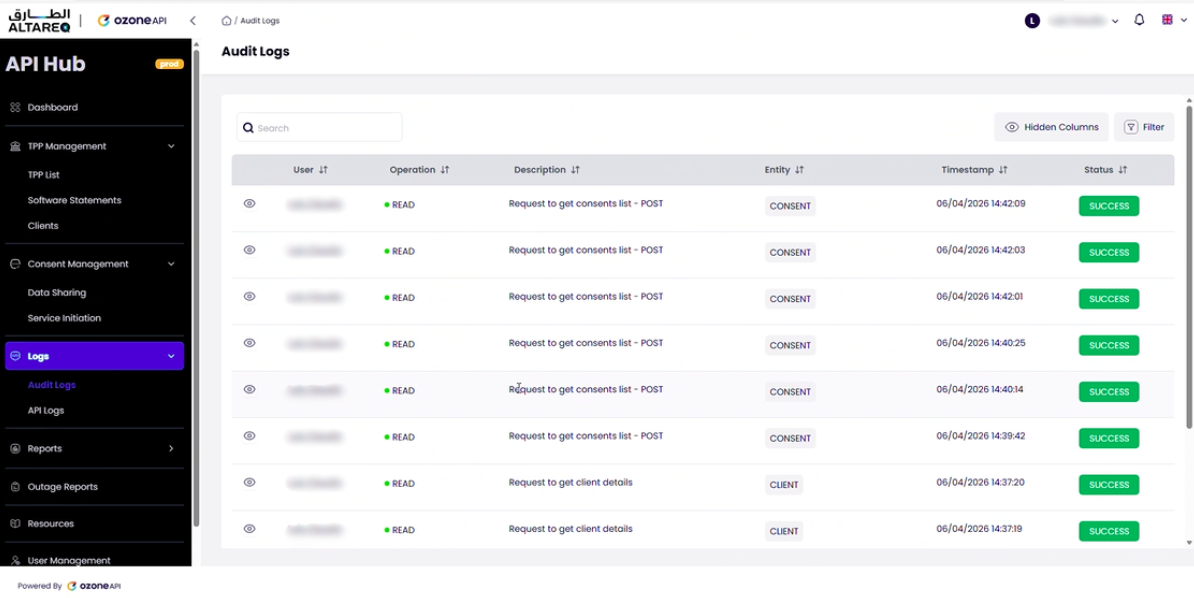
Every action taken by every portal user
The audit log records every action taken by every user within the Admin Portal. This includes reading consent data, viewing TPP details, activating or blocking TPPs, and any other portal interaction.
Each audit log entry includes:
- User — the portal user who performed the action
- Action — the operation performed (e.g. read, update, activate, block)
- Target — the resource affected (e.g. TPP, client, consent)
- Timestamp — when the action occurred
Audit logs are particularly important for tracking administrative changes. If a TPP is blocked or a configuration is changed, the audit log provides a complete record of who made the change and when.
Granular trace of every request through the Hub
API logs provide a complete, granular trace of every request that flows through the API Hub. This is the primary debugging tool for investigating API issues.
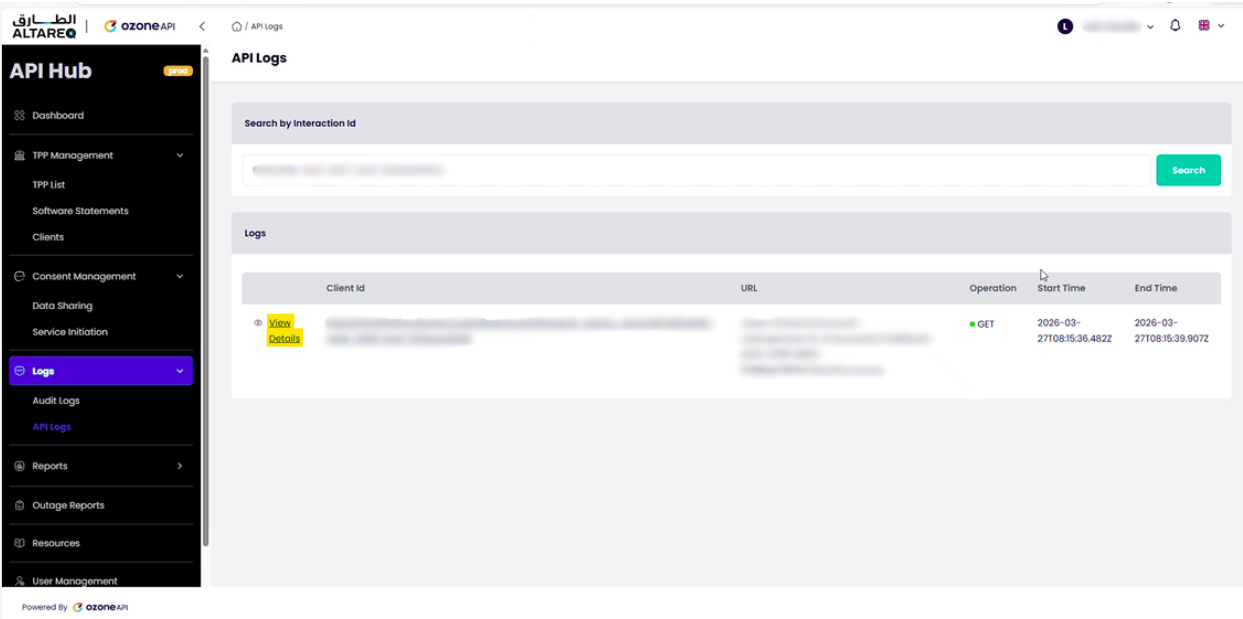
Searching by interaction ID
Every API request carries an x-fapi-interaction-id header. To trace a request, enter this interaction ID in the API logs search field. The portal will return every log entry associated with that request — typically hundreds of entries covering every stage of processing.
What the logs show
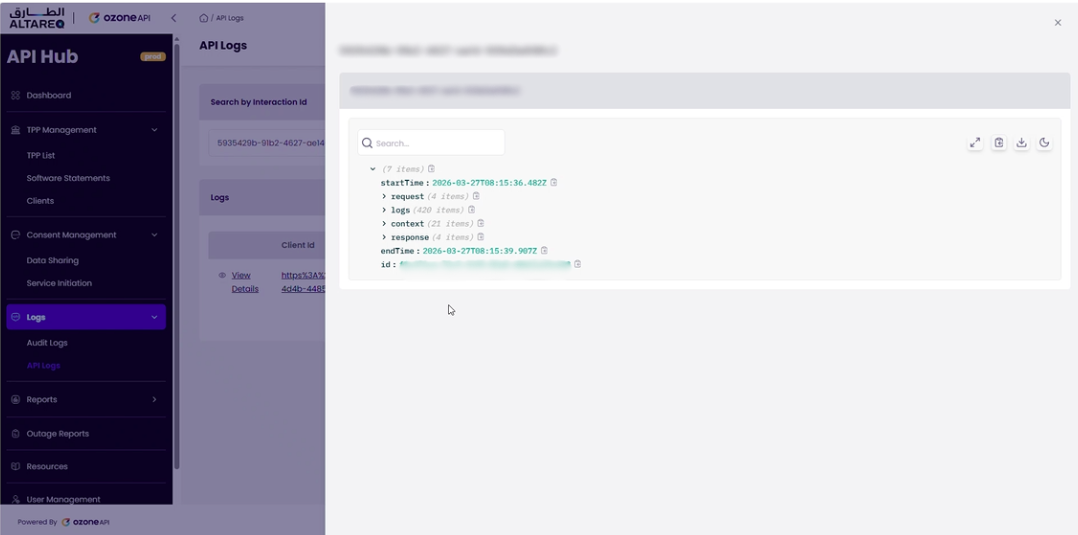
For a single interaction ID, the API logs show the complete lifecycle of the request through the API Hub:
- Inbound request — the TPP's request arriving at the API Hub, including headers, certificate details, and the original URL
- Validation and enrichment — each step of token validation, consent checking, schema enforcement, and request enrichment
- Outbound request to LFI — the request forwarded to the LFI's Ozone Connect endpoint
- LFI response — the response received from the LFI
- Response processing — normalization, error mapping, and response construction
- Outbound response to TPP — the final response returned to the TPP
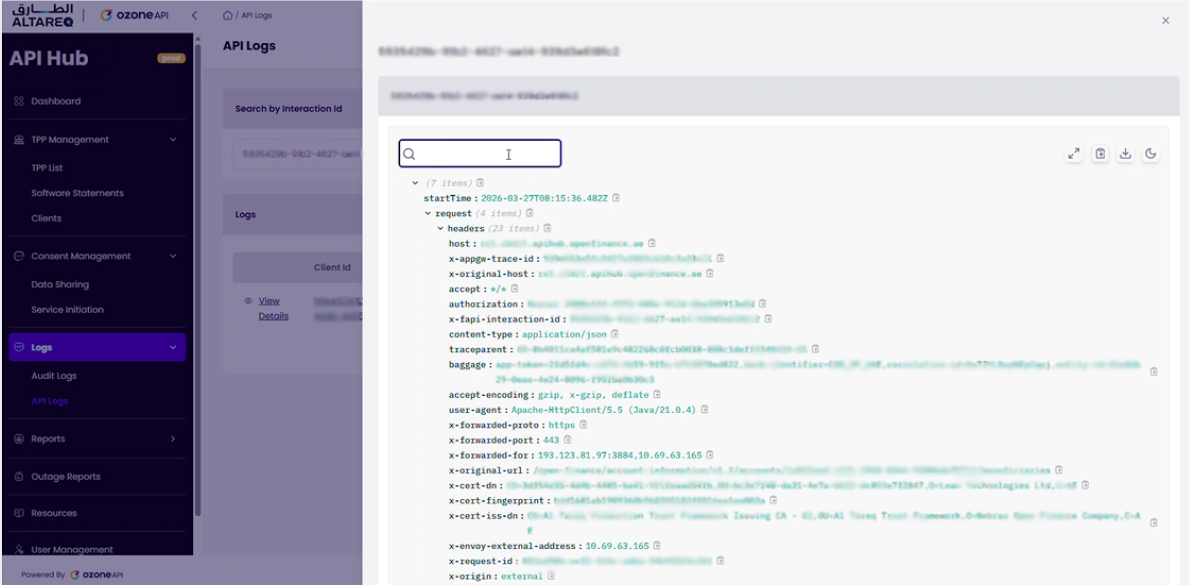
Each log entry contains detailed metadata. From the request headers alone you can identify:
| Header / Field | Information |
|---|---|
| Host | Which API Hub endpoint received the request (resource server, authorization server, etc.) |
| X-Original-URL | The API path called, including the API version and resource (e.g. /account-information/v1.2/accounts/{AccountId}/beneficiaries) |
| X-Cert-DN | The certificate distinguished name, identifying which TPP made the request |
Common scenarios and practical tips
The log entries follow the same pattern for every request. After reviewing a few traces, you will quickly learn which entries correspond to which stage of processing. Common debugging scenarios:
- Unexpected error response — search by interaction ID, locate the LFI response entry, and inspect the status code and body returned by your Ozone Connect endpoint
- Schema validation failure — the log will show the validation step that rejected the request or response, with the specific schema error
- Consent or token issue — the validation entries will indicate whether consent or token checks failed, and why
When a TPP reports an issue, ask them for the x-fapi-interaction-id from the request. With this ID, you can trace the entire request lifecycle in the API logs and identify exactly where the issue occurred — whether in the API Hub's processing or in your LFI response.
API logs cover everything that happens within the API Hub. Once the request is forwarded to your Ozone Connect endpoint, any processing within your own systems is logged in your own infrastructure. The API logs show the request sent to you and the response received back.