
Skip to content

Confirmation of Payee — User Experience v2.1

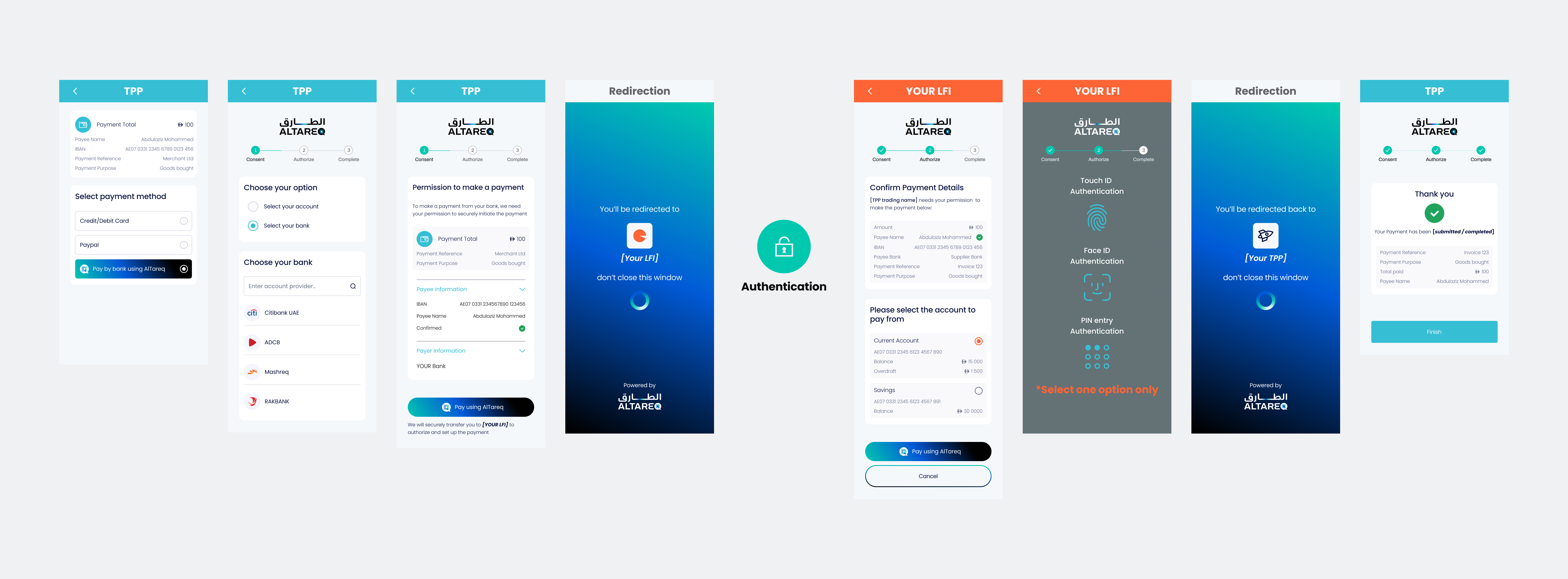
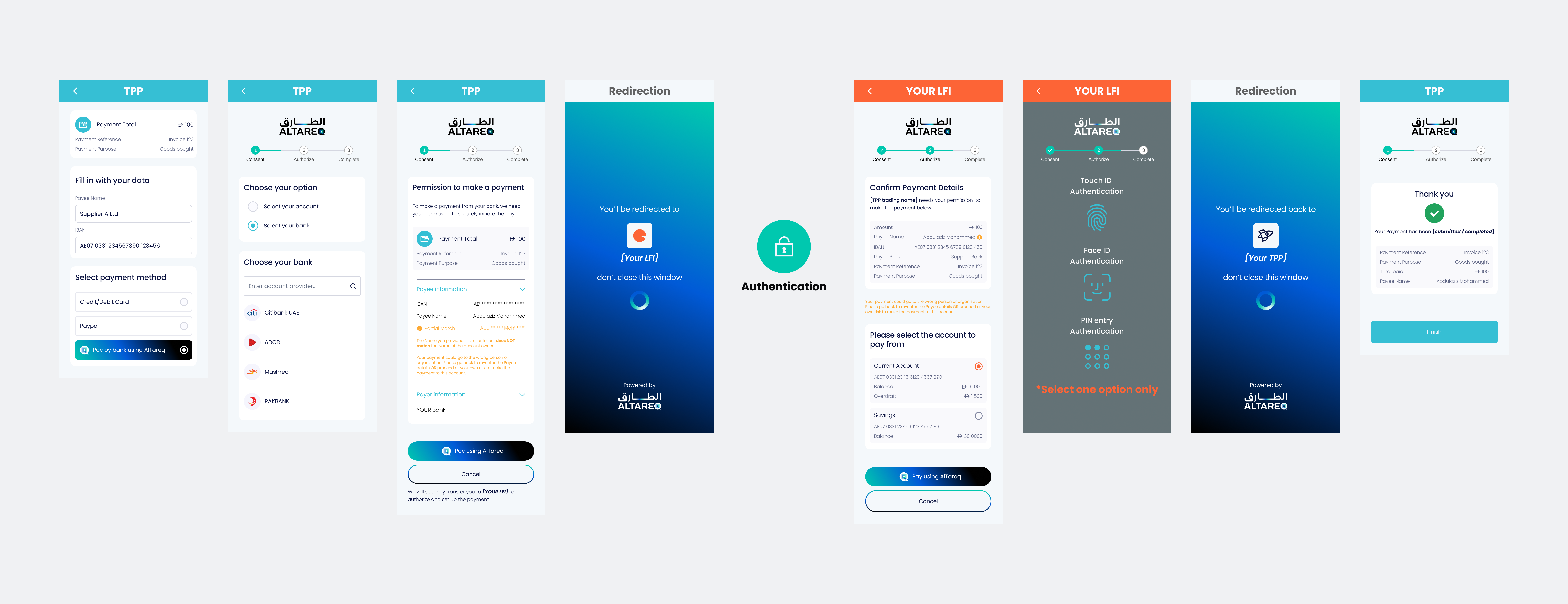
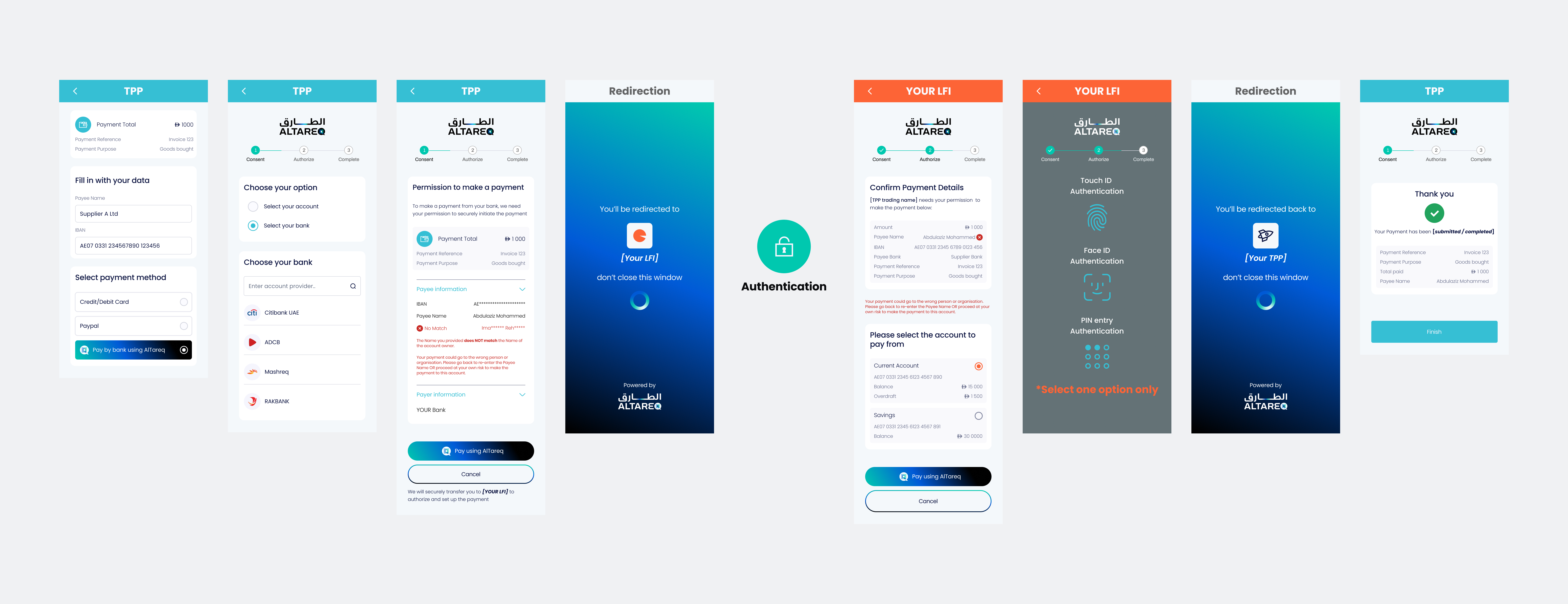
You must display the Confirmation of Payee result next to the Payees Name in the Authorization Page faithfully aligned with the demo and examples below.

Your CoP screen must be submitted as part of CX certification prior to production.

Interactive Demo

Edit the message.Data fields and see to change the signed JWS is embedded inside the domestic_payment_pii creditor block and watch the Consent and Authorisation page previews update live.

Confirmation Response
View confirmation endpoint ↗
Domestic Payment PIIsigned JWS embedded in the creditor PII block (Demo Only)
{
  "Initiation": {
    "Creditor": [
      {
        "Creditor": { "Name": "Ibrahim Al Sabah" },
        "CreditorAccount": {
          "SchemeName": "IBAN",
          "Identification": "AE070331234567890123456",
          "Name": { "en": "Ibrahim Al Sabah" }
        },
        "ConfirmationOfPayeeResponse": "..."
      }
    ]
  }
}

Live UI Preview

Changes made above are immediately reflected in both panels.

Example User Journeys

Example 1 - Single Instant Payment - ConfirmationOfPayee.Yes

confirmation-of-payee
Click to expand

Example 2 - Single Instant Payment - ConfirmationOfPayee.Partial

confirmation-of-payee
Click to expand

Example 3 - Single Instant Payment - ConfirmationOfPayee.No

confirmation-of-payee
Click to expand

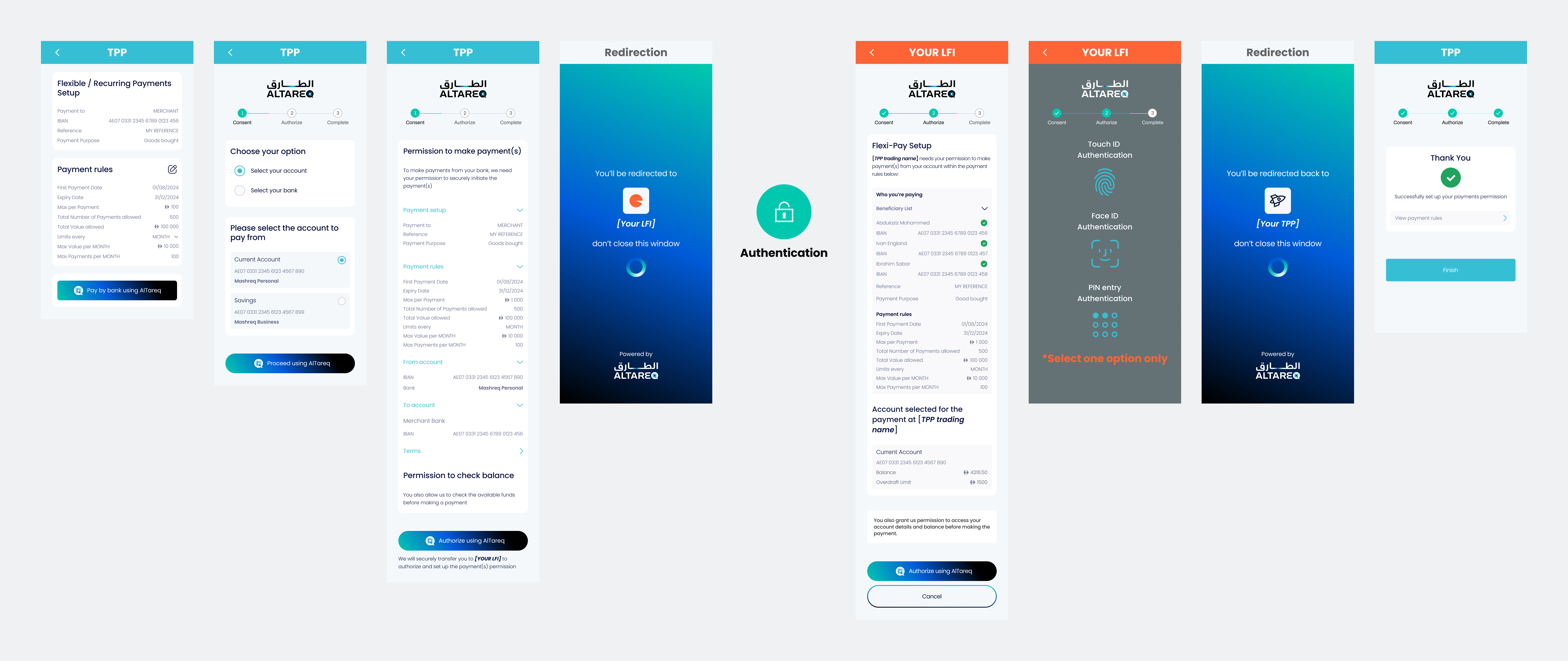
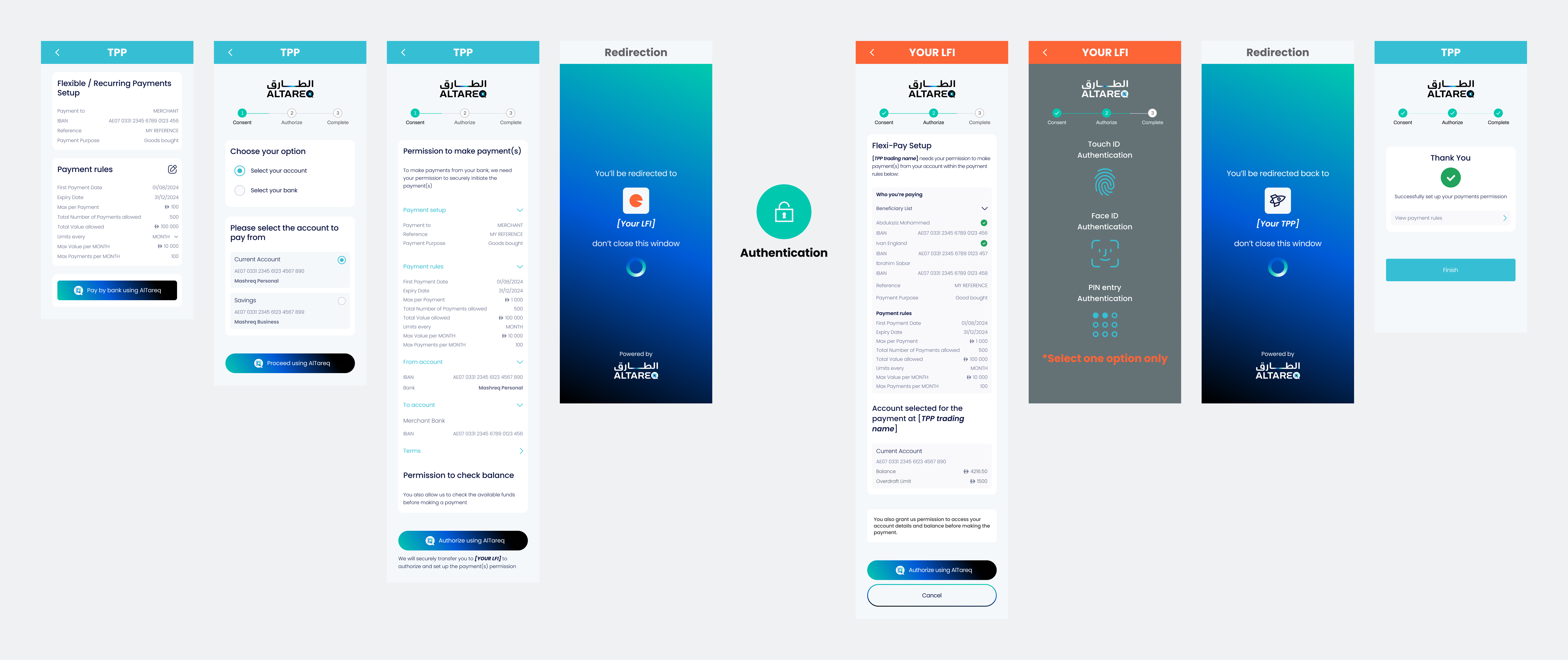
Example 4 - Variable On Demand (Multi Creditor) - ConfirmationOfPayee.Yes

confirmation-of-payee
Click to expand

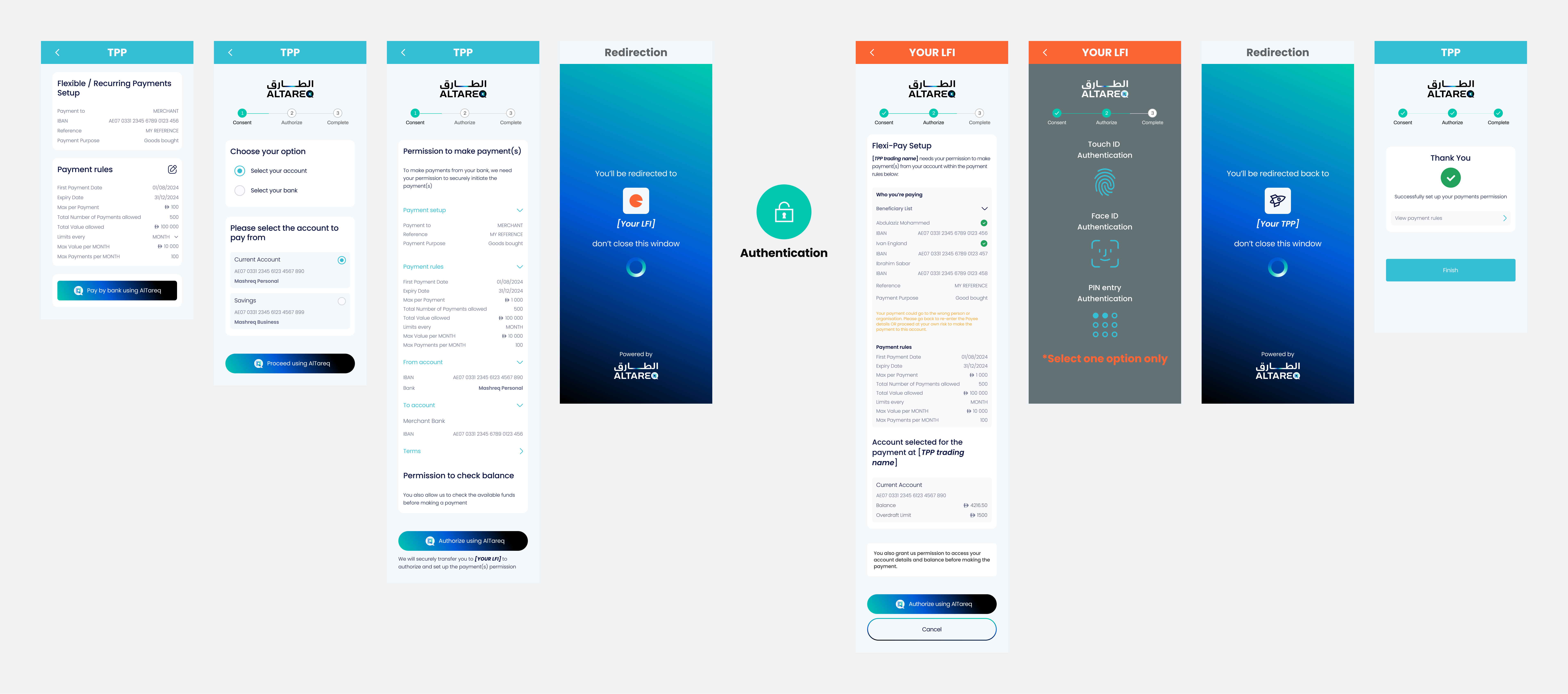
Example 5 - Variable On Demand (Multi Creditor) - ConfirmationOfPayee.Yes + one without ConfirmationOfPayee

confirmation-of-payee
Click to expand

Example 6 - Variable On Demand (Multi Creditor) - ConfirmationOfPayee.Yes + ConfirmationOfPayee.Partial

confirmation-of-payee
Click to expand